How to Summarize a YouTube Video Accurately and Fast
A transcript-first workflow to summarize any YouTube video, verify the claims that matter, and save the transcript as Markdown your own AI reads over MCP.
On this page
- Start by checking what source material exists
- A five-step workflow for an accurate YouTube summary
- 1. Define the question before summarizing
- 2. Capture the transcript or save the video
- Save the YouTube transcript as Markdown with the Sensefold extension
- 3. Request an output you can verify
- 4. Verify the high-risk details
- 5. Save the result with the source
- A practical summary template
- How to handle videos without usable captions
- Where Sensefold fits: one transcript, every AI
- Frequently asked questions
- Can ChatGPT summarize a YouTube video from the link alone?
- How do I save a YouTube transcript as Markdown?
- How can I summarize a YouTube video with no transcript?
- Are AI-generated timestamps accurate?
- What is the fastest way to verify a video summary?
- Should I save the transcript or only the summary?
- Turn one summary into reusable knowledge
The fastest reliable way to summarize a YouTube video is to start with its captions, ask for a structured first pass, and then verify the few claims you may act on. Do not watch every minute by default, but do not treat an AI summary as evidence either.
This workflow works best for lectures, interviews, tutorials, webinars, and other speech-led videos. A screen recording with little narration, a music video, or a visual demonstration needs a different approach because the transcript may not contain the important information.
Start by checking what source material exists
Before choosing a summarizer, open the video and look for Show transcript in the description. YouTube says a full transcript is available for videos that have captions, and selecting a transcript line can jump to that point in the video (YouTube Help).
That check puts the video into one of three groups:
| Video condition | Best first step | Main risk |
|---|---|---|
| Human-edited captions are available | Summarize the transcript, then spot-check the video | The summary may remove nuance or caveats |
| Automatic captions are available | Summarize, but verify names, numbers, and technical terms | Speech recognition errors can change the meaning |
| No captions, or the meaning is mainly visual | Use a tool that explicitly analyzes audio and frames, or take manual notes | A transcript-only tool cannot see what happened on screen |
This distinction matters. Modern multimodal models can analyze sampled video frames and audio, but that does not mean every link-based YouTube summarizer does so. Google's description of Gemini video understanding shows what a multimodal model can do; it is not proof that a particular summarizer watched the visual track (Google Developers Blog).
A five-step workflow for an accurate YouTube summary
1. Define the question before summarizing
“Summarize this video” often produces a generic recap. Write down what you actually need:
- the speaker's central argument
- the steps in a tutorial
- the evidence behind a recommendation
- the trade-offs in a product review
- the decisions and action items in a recorded meeting
A clear question helps the model keep relevant detail and discard filler. It also gives you a concrete standard for verification.
2. Capture the transcript or save the video
For a one-off task, YouTube's transcript panel may be enough. Open Show transcript, use the caption text as the source, and keep the video open for verification.
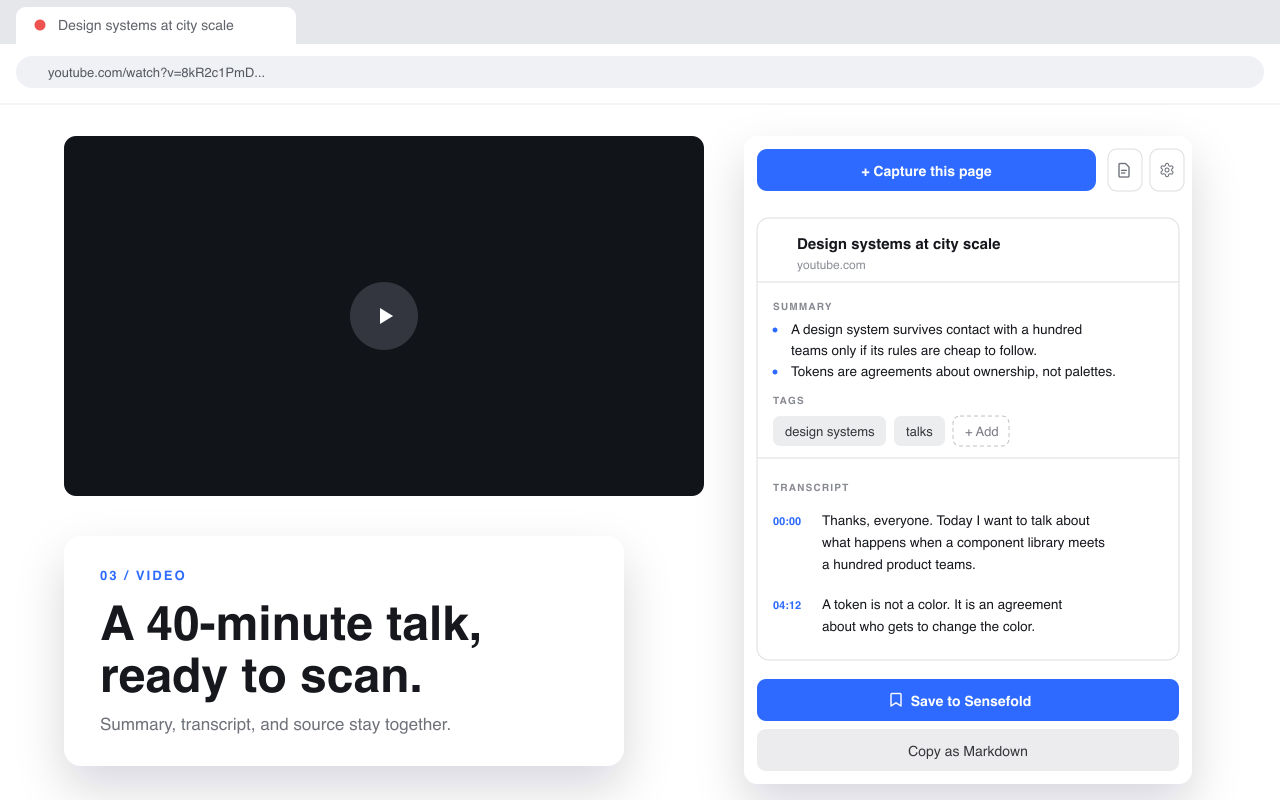
For material you expect to reuse, capture the YouTube page once with the Sensefold Chrome extension. It saves the video with its transcript as Markdown in your personal context, Sensefold adds a summary and a chapter guide, and any AI you connect over MCP can read it later.
Do not assume a transcript exists just because a tool accepts the URL. If the video has no captions, confirm whether the tool actually processes the audio or visual track. If it does not say, treat the result as incomplete.
Save the YouTube transcript as Markdown with the Sensefold extension
Three steps, no copy-and-paste from the transcript panel:
- Add Sensefold to Chrome and sign in.
- On the video page, open the side panel and click Capture this page. The extension reads the page only when you click; the capture includes the title, source URL, and the transcript YouTube exposes for that video.
- Review the draft summary and tags, then click Save. In the web app and on iOS the saved item also gets a chapter-level guide, and each transcript line seeks the player to that moment.
Prefer the transcript in another tool? Copy as Markdown in the same panel puts the capture on your clipboard, ready to paste into ChatGPT, Claude, or a plain note. The iOS share sheet and the web app accept the same YouTube link if you are not in Chrome.
Two honest limits: a video with no captions produces no transcript, because Sensefold does not transcribe the audio track, and Bilibili pages are saved with their metadata and description only. Saving the video is free; the automatic summary and chapter guide spend AI credits (see pricing). Supported sites and what each one captures are listed in the video capture docs.
3. Request an output you can verify
Use a prompt that separates the overview, evidence, and uncertainty:
Summarize this video from the provided transcript. Start with a two-sentence overview, then list five key points. For each point, include the supporting transcript section or timestamp when the source provides one. Preserve important caveats. List names, numbers, technical terms, and recommendations that should be checked. If the transcript does not support a claim, say so instead of inferring it.
For a tutorial, replace “five key points” with:
List the steps in order, including prerequisites, commands or settings mentioned, expected results, and warnings. Separate what the presenter demonstrates from what they only claim.
For an interview, ask for each speaker's position and areas of disagreement. For a lecture, ask for the thesis, supporting arguments, definitions, and examples.
4. Verify the high-risk details
You rarely need to replay the whole video. Check the details where compression or transcription errors matter most:
- numbers, dates, prices, and measured results
- proper names, product names, and technical terms
- recommendations you plan to follow
- claims that sound more certain than the speaker's wording
- steps where the screen shows information the speaker does not say aloud
Watch 20 to 60 seconds around each relevant moment. Compare the wording with the summary, restore missing conditions, and correct any caption error.
AI summaries commonly fail by smoothing “might” into “will,” dropping the exception after a recommendation, or merging two separate points. Verification is not a second full viewing; it is a short audit of the claims with consequences.
5. Save the result with the source
A summary copied into an isolated note loses value quickly. Keep at least:
- the original YouTube URL
- the video's title and creator
- the summary date
- the question the summary was meant to answer
- links or timestamps for verified moments
- a note about transcript quality and missing visual context
This makes the note auditable later. If the speaker changes a description, the video is updated, or your decision is questioned, you can return to the original source.
A practical summary template
Use this structure for a repeatable result. It is plain Markdown, so it pastes into any AI chat or a Sensefold note unchanged:
# <Video title> — <creator>, summarized <date>
Source: <YouTube URL>
Question: <what this summary needs to answer>

## Overview
Two sentences explaining the video's subject and conclusion.

## Key points
Five concise points. Keep the speaker's level of certainty and attach a
source moment (timestamp or transcript line) when available.

## Evidence and examples
The demonstrations, data, case studies, or arguments used to support the
conclusion.

## Caveats
Limitations, prerequisites, exceptions, and disagreements that a short
summary could otherwise erase.

## Actions
Steps you intend to take, clearly separated from the speaker's own
recommendations.

## Verification log
Which claims you checked, where they appear, and anything the transcript
could not establish.
How to handle videos without usable captions
A missing transcript is not automatically a dead end, but it changes the tool requirement.
If the video is mostly spoken audio, use a service that explicitly transcribes the audio, then review uncertain words. If it is visual-heavy, use a multimodal system that explicitly accepts video or sampled frames. For sensitive or high-stakes material, take manual notes while watching the relevant sections.
Do not paste a title and description into a chatbot and call the output a video summary. That is a summary of metadata, not the video. Likewise, a transcript-only summary should not claim that a chart rose, a button appeared, or a demonstration succeeded unless those facts are stated in the transcript or you verified them on screen.
Where Sensefold fits: one transcript, every AI
Sensefold is a personal context: a private, model-independent space where everything you capture, including YouTube transcripts, is stored as Markdown that your own AI can read and write over MCP. The saved video sits next to your articles, threads, AI chats, and notes, and the same hybrid keyword and semantic search covers all of them.
Connect Claude, ChatGPT, Claude Code, Codex, Cursor, or any other MCP client to https://api.sensefold.app/mcp with a paste-and-authorize OAuth flow or a revocable Agent key. The agent can call search_hub to find the video, get_item to read its full transcript, and, if you grant edit access, save_note to store its verified summary as a note in the same space. Every agent write is versioned and revertible. Setup for each client is in the for-agents guide and the MCP tools reference.
Search results carry a deep link to the saved item, so an answer can cite the video it drew on. Those references are item-level, not timestamp-anchored: an agent should not be described as pointing to an exact second in the video. Open the cited item and use its seekable transcript to verify the moment.
Sensefold should also not be presented as a replacement for multimodal visual analysis. Its YouTube capture is strongest for videos with usable spoken content and captions. If the conclusion depends on diagrams, gestures, screen states, or silent demonstrations, review those visuals directly or use a tool that explicitly analyzes them.
Frequently asked questions
Can ChatGPT summarize a YouTube video from the link alone?
Only if the specific product can access the video's transcript, audio, or frames. A model that cannot retrieve the source may rely only on text you provide or on public metadata. Check what material was actually processed before trusting the result.
How do I save a YouTube transcript as Markdown?
Capture the video page with the Sensefold Chrome extension. The transcript is saved with the video as Markdown, and Copy as Markdown in the same panel puts it on your clipboard for any other tool. Videos without captions have no transcript to save.
How can I summarize a YouTube video with no transcript?
Use a tool that explicitly transcribes the audio. If the important information is visual, use a tool that explicitly analyzes video frames or review the relevant sections manually. A transcript-only workflow cannot recover silent on-screen detail.
Are AI-generated timestamps accurate?
They are most trustworthy when derived from timestamped captions or connected to the actual player. Plain-text timestamps generated from an untimed transcript can be guessed or shifted. Click several before relying on them.
What is the fastest way to verify a video summary?
Check names, numbers, recommendations, and surprising claims first. Watch a short window around each cited moment and compare the speaker's wording with the summary. You usually do not need to replay the full video.
Should I save the transcript or only the summary?
Keep both when the source matters. The summary helps you scan; the transcript and video let you audit what was said. A summary without its source becomes difficult to trust or update.
Turn one summary into reusable knowledge
The best workflow is not the one that produces the shortest paragraph. It is the one that saves time while preserving a path back to evidence: check the source material, create a structured first pass, verify high-risk details, and keep the result attached to the video.
The same transcript-first discipline applied to PDFs covers documents. For the full list of what the extension captures from a video page, read the video capture docs; to let your own AI read those transcripts, start with the for-agents guide.